leadmy: identify callers in Webex
CRM · all sectors · Germany
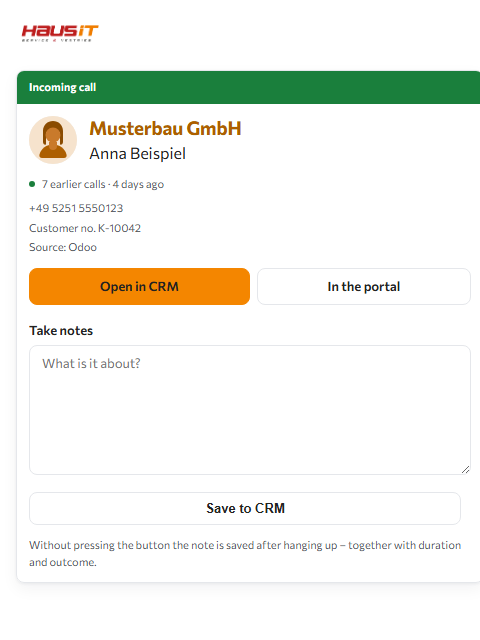
If someone calls whose number is in leadmy, the Webex sidebar gives their name – before you pick up. The lookup happens in your own leadmy, at the moment of the call. With leadmy, the company and the customer number is added. One click opens the record in leadmy.
- The phone rings Incoming call
- Webex reports the number
- Haus iT Caller ID standardises it
- Your leadmy looks it up Your customer data stays here
- The sidebar names the caller
What the leadmy connector delivers
- Finds by phone number – yes When the phone rings, the caller's number is looked up in this system. That is the basic service; without it there would be no connector.
- Finds by name – yes You can also type a name into the Webex tile's search bar. Without this capability the connector only answers the question “who is calling”.
- States the company – yes The company the caller works for is added to their name – provided it is maintained in the system.
- States the customer number – yes The customer number from the system appears alongside. Anyone who can see it before picking up does not have to ask for it.
- Links into the record – yes A click in the tile opens the record in the system itself – no searching, no signing in.
- Writes the call note back – yes After hanging up, a field appears in the Webex tile. What you write there, the portal files as a note on the contact – but only if your company switches this on deliberately. Without that tick, it only reads.
These details are not maintained by hand; they are read from the same description the query itself runs on. They therefore cannot go stale without the connector changing with them.
How the query works
When the phone rings, Webex reports the number to the portal. The portal queries your leadmy with it – using the credentials your company has stored for that purpose – and returns what it found. There is no nightly sync and no copy of your customer base with us.
The result is cached so the same number is not queried on every call: hits for 14 days, unsuccessful queries for 24 hours.
What you need in leadmy
- Zugang (flv_live_…) secret
The portal walks you through where to find these details in your system step by step during setup.
The connector is set up once for the entire company. Which employee may use the Webex tile is decided by management or IT in the portal – the tile is billed per user, so set up is not the same as enabled.
Limits of this connector
- A contact system knows customers – not suppliers, not public authorities, not tradespeople. For everything that will never be in there, the portal has its own number book.
When you place the call
You type a name into the tile's search bar – leadmy returns the phone numbers stored there, and one click has Webex dial.
- The search bar type a name
- Your leadmy returns the numbers Your customer data stays here
- The tile shows each one
- Webex dials on one click
Every stored number appears on its own, with its label – office, mobile, private. Otherwise someone who called from a mobile gets a callback to the desk they are not sitting at.
Dialling is done by the Webex client. The portal opens no connection – it hands the number to your operating system, which passes it on to Webex.
From inside leadmy you dial with an extension for Google Chrome: select the number, right-click, call. The number goes to the Webex App on your computer, and Webex places the call. You download the extension in the portal. Back into leadmy the connector writes the call note after hanging up and every call from the Webex call data, even without the sidebar open – but only if you switch that on yourself. Without that tick it reads and nothing else.
What it looks like
Questions about leadmy and Webex
How do I see who is calling in leadmy?
You do not see it in leadmy but in Webex: Haus iT Caller ID looks the number up in your leadmy while the phone rings and shows the result in the sidebar of the Webex client – before you pick up.
What appears in the tile then?
Always the caller's name. Plus the company, provided it is filled in on the record. Plus the customer number. A button opens the record in the system.
What does the leadmy connector need?
These details: Zugang (flv_live_…). The portal shows you where to find them in leadmy during setup.
Is my customer data copied?
No. The question goes straight to your leadmy, at the moment of the call. No copy of your customer base is created here, and no call content is processed.
What happens if the caller is not in leadmy?
Then they stay unknown for now – a contact system knows customers, not suppliers or public authorities. That is what the portal's own number book is for: once someone is named, they are identified from then on.
What does it cost?
The portal with connection to Webex, retention of call data and number book is free, with no limit on workplaces. The Webex tile is billed per user per month.